SSO ID Login: How to Login to Rajasthan SSO Portal (Step-by-Step)
Recruitment form closing tonight? Scholarship status to check? Salary slip to download? All of it starts with one thing: a working SSO ID login. This guide shows you exactly how to sign in to the Rajasthan SSO portal, which details you need, other ways to log in, and what to do when the login page won’t let you in.
What Is SSO ID Login?
SSO ID login is how you sign in to RajSSO, the Rajasthan government’s Single Sign-On system run by the Department of Information Technology & Communication (DoIT&C). One SSO ID and password open more than 100 state services, including the recruitment portal, e-Mitra, Jan Aadhaar, scholarships, pensions and employee apps. You don’t need a separate account for each department.
Once you log in, every service linked to your account appears on your SSO dashboard. You can open any of them without signing in again.
What You Need Before You Log In
Keep these ready so you don’t get stuck halfway:
- SSO ID (Digital Identity): the username you created when you registered.
- Password: the one you set at registration, or your most recent reset. Passwords are case-sensitive.
- Registered mobile number: not needed for every login, but you’ll need it for OTPs if your password has expired or you have to reset it.
- A stable internet connection: a weak connection can make the captcha expire before you submit.
How to Login to SSO ID Rajasthan: Step-by-Step
Step 1: Open the Official SSO Login Page
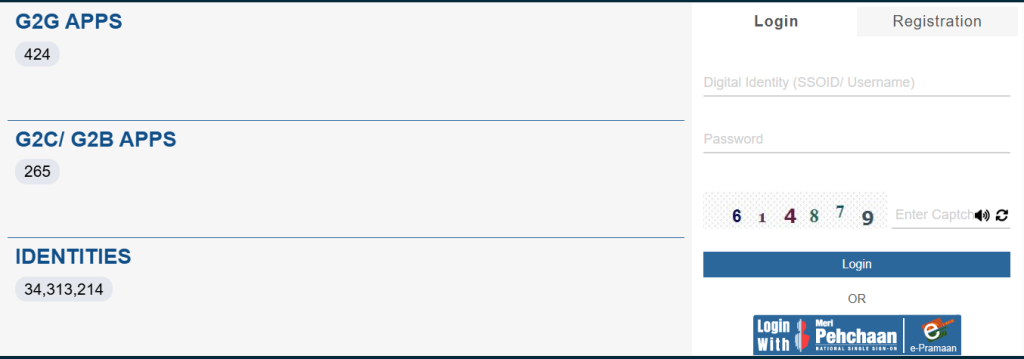
Open your browser and go to sso.rajasthan.gov.in, then click the Login tab. Before you type anything, check that the address bar shows exactly sso.rajasthan.gov.in. Look-alike websites copy the SSO design to steal passwords.
Step 2: Enter Your SSO ID
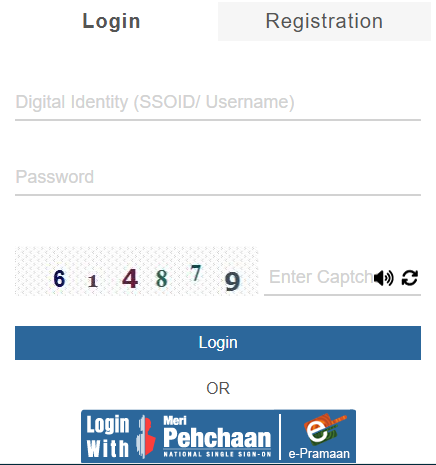
In the first field, labelled Digital Identity (SSOID/Username), type your SSO ID exactly as you created it, with no spaces before or after. If you see “Invalid Digital Identity (SSOID)”, check the spelling, or recover your ID using the steps further down.
Step 3: Enter Your Password
Type your password in the second field. Make sure Caps Lock is off, and that your phone keyboard hasn’t auto-capitalised the first letter. These two small mistakes cause most “wrong password” errors.
Step 4: Fill in the Captcha
Enter the 6-digit captcha code shown on the screen. If it’s hard to read, tap the refresh icon for a new code, or the speaker icon to hear it. Type it quickly, as an old captcha can stop working.
Step 5: Click Login and Open Your Dashboard
Click Login. If your details are correct, your SSO dashboard opens, showing app tiles for the services linked to your account. Click any tile to open that service.
Other Ways to Login to SSO Portal
Login with Meri Pehchaan
The SSO login page also has a Meri Pehchaan button below the main form. Meri Pehchaan is the Government of India’s national single sign-on. If you already use it for other government services, you can sign in to RajSSO through it instead of typing your SSO ID and password.
Login with Mobile Number or Jan Aadhaar
The login field asks for your SSO ID, not your mobile or Jan Aadhaar number. If you only remember your mobile number or Jan Aadhaar, find your SSO ID first:
- Click “I Forgot my Digital Identity (SSOID)” and recover it using Jan Aadhaar, Aadhaar or Google, or
- Send RJ SSO by SMS to 9223166166 from your registered mobile number.
SSO Login on Mobile
You don’t need a computer. Open sso.rajasthan.gov.in in Chrome or any mobile browser and follow the same five steps. On a phone, watch out for auto-capitalisation in the password field, and keep the screen awake while you type the captcha.
Who Can Log In to the SSO Portal?
Anyone with an SSO ID can log in on the same page. The services you see depend on your account type:
| Account type | Registered with | Typical services after login |
|---|---|---|
| Citizen | Jan Aadhaar or Google account | Recruitment, scholarships, e-Mitra, Jan Aadhaar, pensions |
| Udyog (Business) | BRN or Udyog Aadhaar | Licences, registrations, industry schemes |
| Government Employee | SIPF ID | Salary slips, SIPF, service records, department apps |
What You Can Do After SSO ID Login
Your dashboard is the gateway to Rajasthan’s online services. Some of the most-used ones:
- Recruitment Portal: apply for RPSC and RSSB exams, complete One Time Registration (OTR), and download admit cards.
- e-Mitra: apply for certificates and pay electricity and water bills.
- Jan Aadhaar: complete e-KYC and update family details.
- Scholarship: apply for state scholarships and track their status.
- Employment Exchange: register as a job seeker and update your qualifications.
- Rajasthan Sampark: file and track complaints against any department.
- Pension services: apply for and track social security pensions.
- Employee apps: salary slips, SIPF and service records for state staff.
See every service in our SSO services list.
Forgot Your SSO ID or Password?
Both recovery links sit right below the login form:
- Forgot password: click “I Forgot my Password”, enter your SSO ID, verify the OTP sent to your mobile or email, and set a new password. Or send RJ SSO PASSWORD by SMS to 9223166166.
- Forgot SSO ID: click “I Forgot my Digital Identity (SSOID)” and recover it with Jan Aadhaar, Aadhaar or Google. Or send RJ SSO to 9223166166.
SSO Login Problems and Quick Fixes
| Problem | Quick fix |
|---|---|
| Invalid Captcha | Refresh the captcha and type the new code straight away |
| Invalid Digital Identity (SSOID) | Check for typos or extra spaces, or recover your SSO ID |
| Wrong password | Check Caps Lock and auto-capitalisation, then reset rather than guess again |
| Password expired | Follow the on-screen prompt and set a new password with OTP |
| Account locked | Stop retrying and reset your password through “I Forgot my Password” |
| OTP not received | Check network and SMS inbox, wait 2–3 minutes, then resend |
| Portal not loading | Clear cache, try incognito or another browser, check for a maintenance notice |
| Service missing on dashboard | Check your account type and complete Aadhaar or Jan Aadhaar verification |
Tips for Safe SSO Login
- Log in only on sso.rajasthan.gov.in. Check the address before entering your password.
- Never share your OTP or password with anyone, including callers who say they’re officials or e-Mitra operators.
- Log out after every session on shared or cyber-café computers.
- Don’t let the browser save your password on a device other people use.
- Use a strong password and change it if you think someone else knows it.
- Keep your registered mobile number updated so security OTPs reach you.
SSO Helpdesk for Login Issues
If you still can’t log in, contact the official RajSSO helpdesk:
- RajSSO Helpdesk (Jaipur): 0141-2928239 · [email protected]
- RajSSO & Email Services: 0141-2925556 · [email protected]
- District helpdesks: see all district SSO helpline numbers
FAQs on SSO ID Login
What is the official SSO login website?
The only official site is sso.rajasthan.gov.in. The login page is at sso.rajasthan.gov.in/signin.
Can I log in to SSO with my mobile number?
The login field asks for your SSO ID. If you only remember your mobile number, recover your SSO ID through “I Forgot my Digital Identity (SSOID)”, or by sending RJ SSO to 9223166166 from your registered mobile.
Can I log in to SSO without a password?
You can sign in with Meri Pehchaan if you already have an account there. Otherwise, reset your password through “I Forgot my Password”.
Why does my SSO login say “Invalid Captcha”?
The code was mistyped or had expired. Refresh it and enter the new code quickly.
Is SSO ID login free?
Yes. Logging in and using the SSO portal is completely free.
Can I use one SSO ID for all government services?
Yes. One SSO ID gives access to every service linked to your account type. Don’t create a second ID. If you already have two, merge them.
Final Word
A smooth SSO ID login comes down to three things: the right website, the right SSO ID, and a password you remember. Bookmark the official portal, keep your mobile number updated, and sort out small problems early, before a form deadline turns them into big ones.